Permissions
Permissions control who can see, search, and change assets and templates.
Every new instance starts locked down: only Elevator SuperAdmins have access until you grant permissions to others.
A permission has three parts:
- A group: the people it applies to, such as "Authenticated Users" or a list of specific people.
- A level: what those people can do, such as "Search and Browse" or "Add Assets to Instance".
- A scope: where it applies, either the whole instance (all collections) or a single collection.
Instance administrators manage instance and collection permissions on the Permissions page. Drawer owners share their drawers separately, from the drawer itself. See Drawer Permissions.
Permission Levels
Each level includes everything the levels above it in this list allow.
| Rank | Level | What it allows |
|---|---|---|
| 0 | No Permissions | Nothing. The user sees a "no permission" message when they visit the instance. |
| 1 | Search and Browse | Search and browse assets and see thumbnails, but not larger versions of files. |
| 2 | View Derivatives (Group 1) | View the display versions of files in File Handler Group 1. See File Handler Groups. |
| 3 | View Derivatives (Groups 1 & 2) | View the display versions of files in File Handler Groups 1 and 2. |
| 4 | Create/Edit Drawers | Create drawers, add assets to them, and share them. |
| 5 | Download Originals | Download the original uploaded files. |
| 6 | Add Assets to Instance | Add new assets and edit existing ones. |
| 7 | Edit Templates | Create, edit, duplicate, reindex, and delete templates. This level does not include instance settings, permissions, or collections. |
| 8 | Administer Instance | Full control of the instance, including settings, permissions, collections, and templates. |
Edit Templates and Administer Instance only take effect when granted on the whole instance. Granted on a single collection, either one allows the same as Add Assets to Instance in that collection.
When someone belongs to more than one group, they get the highest permission level any of their groups grants.
EXAMPLE
User is in 3 groups:
- Authenticated Users with permission to Search and Browse (Level 1)
- Grad Students with permission to Download Originals (Level 5)
- Library Staff with permission to Add Assets to Instance (Level 6)
Their effective permission is the highest level: Add Assets to Instance (Level 6)
Instance and Collection Permissions
A permission's scope is either Instance or Collection.
- Instance permissions apply to every collection in the instance.
- Collection permissions apply to one collection and every collection nested inside it.
A collection permission can raise a group's access to the assets in that collection, but it can't lower it.
EXAMPLE
User has these permissions:
- Authenticated Users can Search and Browse (Level 1) on the Instance (all collections).
- Research Group can Add Assets to Instance (Level 6) on the Core Samples collection.
- Grad Students can Create/Edit Drawers (Level 4) on the Core Samples collection.
Their effective permission on Core Samples is Add Assets to Instance (Level 6), which includes creating and editing drawers. In every other collection, they can only search and browse.
Groups
A group defines who a permission applies to.
Every instance offers these group types:
- All: everyone, including visitors who haven't signed in.
- Authenticated Users: anyone signed in, by any login method.
- Centrally Authenticated Users: anyone signed in through your institution's single sign-on.
- Specific People: people you choose by name, email, or username.
Your instance may offer more types, depending on how your institution connects to Elevator. At the University of Minnesota, these include Unit, Job Code, Class Number, Dept/Course Number, Student Status, and Employee Type. Elevator may suggest values based on your own account, such as the courses you teach.
Managing Permissions
Open the Admin menu and choose Instance Permissions, or choose Permissions in the sidebar on any admin page. Only instance administrators can open this page.
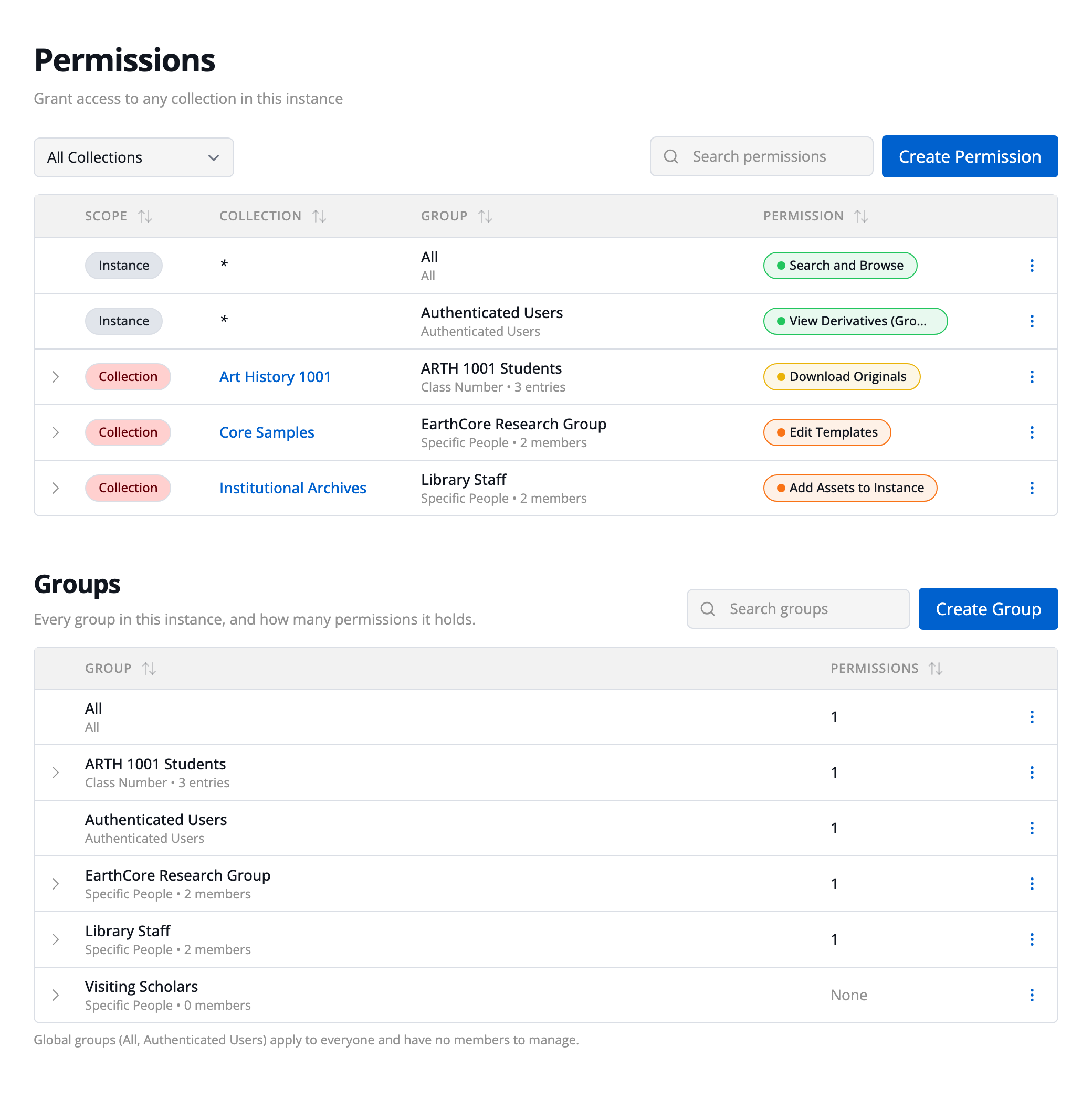
The page has two tables:
- Permissions lists every permission in the instance: its scope, collection, group, and level.
- Groups lists every group in the instance and how many permissions it holds. A group with None holds no permissions yet.
To narrow the Permissions table, choose a collection from the All Collections menu, or type in Search permissions. Choosing a collection renames the page after it, such as "Core Samples Permissions". Click Reset to show every collection again.
You can also open one collection's permissions from the Collections page: choose Permissions from that collection's ⋮ menu.
Granting a Permission
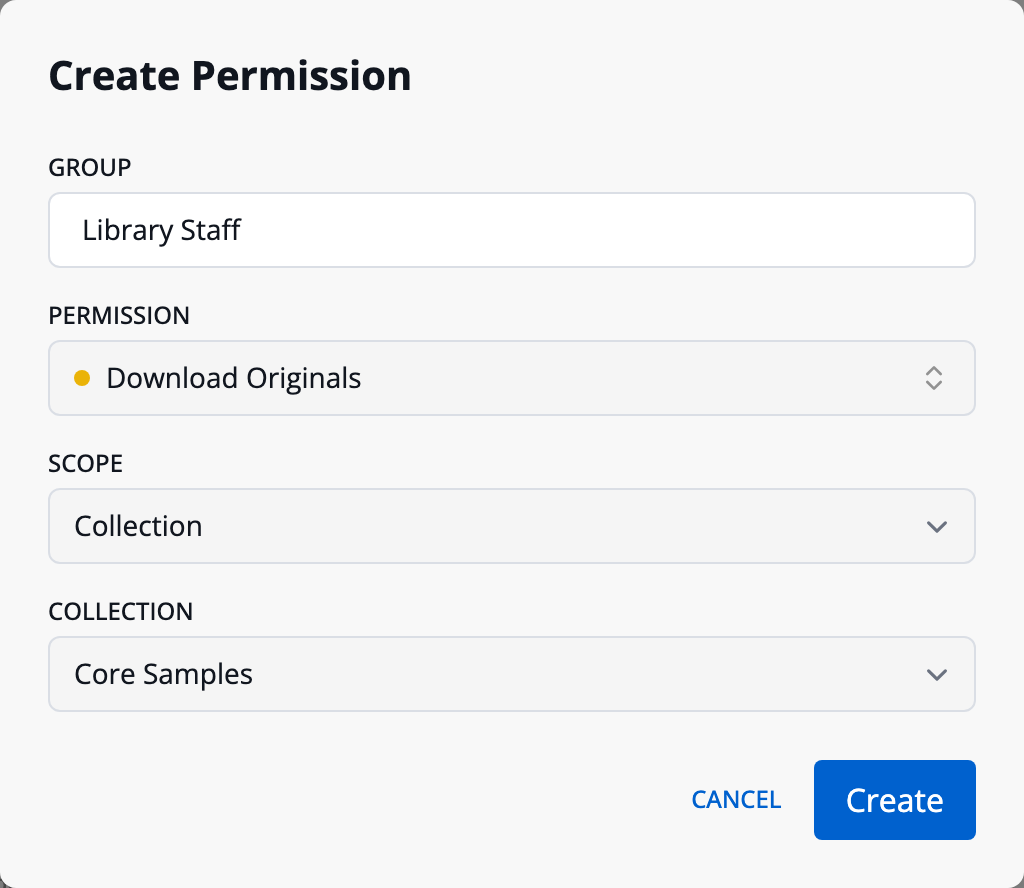
- Click Create Permission.
- In Group, start typing a group's name and choose it from the list. To make a new group, type its name, choose Create group "…", and then choose its Group Type.
- Choose a Permission level.
- Choose a Scope: Instance or Collection. For a collection, choose it from the Collection menu. If you filtered the table to a collection, it's already chosen.
- Click Create.
A group can hold only one permission level on the instance and one on each collection. If the group already has a level where you're granting one, Elevator warns you that saving will replace it.
When you create a new Specific People group, or a new group of one of your institution's types, Elevator opens it in the table so you can add its first members or entries.
Creating a Group
To create a group before you decide its permissions, click Create Group above the Groups table. Choose a Group Type, enter a Group Name, and click Create. The new group holds no permissions. To give it one, choose Add Permission from its ⋮ menu.
Adding People to a Group
Click the arrow at the start of a row, in either table, to expand its group.
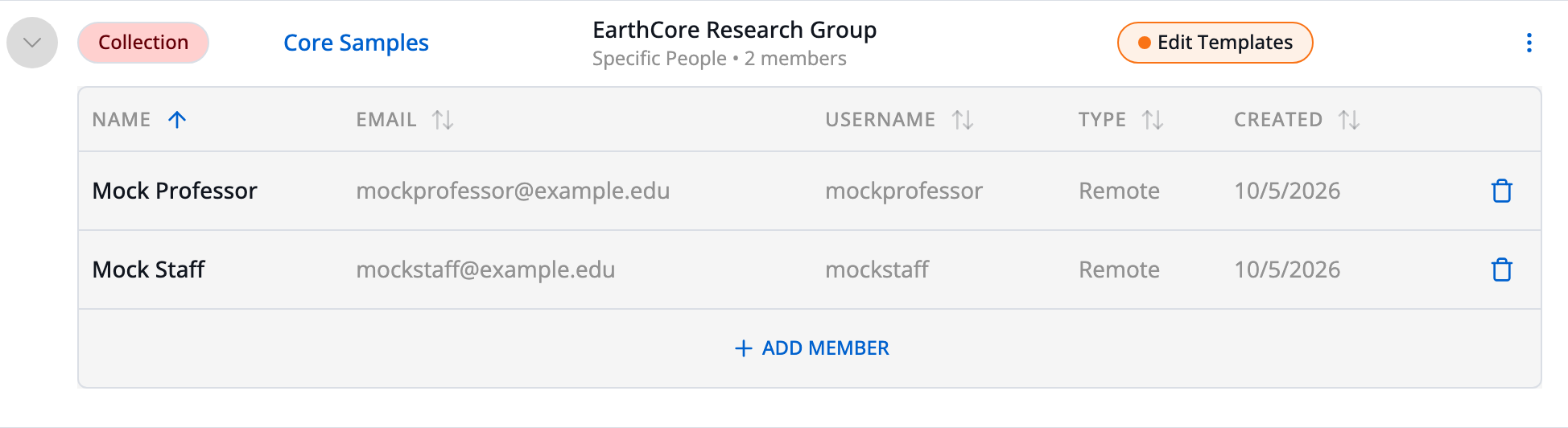
- For a Specific People group, click Add Member and type a name, email, or username. If the person has never signed in to Elevator, choose Provision and add remote user to add them by username. To remove someone, click the trash icon on their row.
- For other group types, click Add Entry and choose a suggested value, or type your own and choose Use "…". To change an entry, click its pencil icon. To remove one, click its trash icon.
All, Authenticated Users, and Centrally Authenticated Users include everyone who matches, so they have no members to manage.
Changing or Removing a Permission
Each row in the Permissions table has a ⋮ menu:
- Edit Group changes the group's name, and the level of this permission.
- Remove Permission removes this one permission. The group and its members remain.
- Delete Group deletes the group and every permission it holds, on the instance and on every collection.
Each row in the Groups table has a ⋮ menu:
- Edit Group changes the group's name.
- Add Permission grants this group a permission.
- Delete Group works the same as in the Permissions table.
A group's type can't be changed after it's created. Removing a permission and deleting a group can't be undone.
Creating a Local Account Classic UI
A local account signs in with a username and password stored in Elevator, rather than through your institution's login. Open Admin › Instance Permissions (Classic), click Create a local user, and fill in the form.
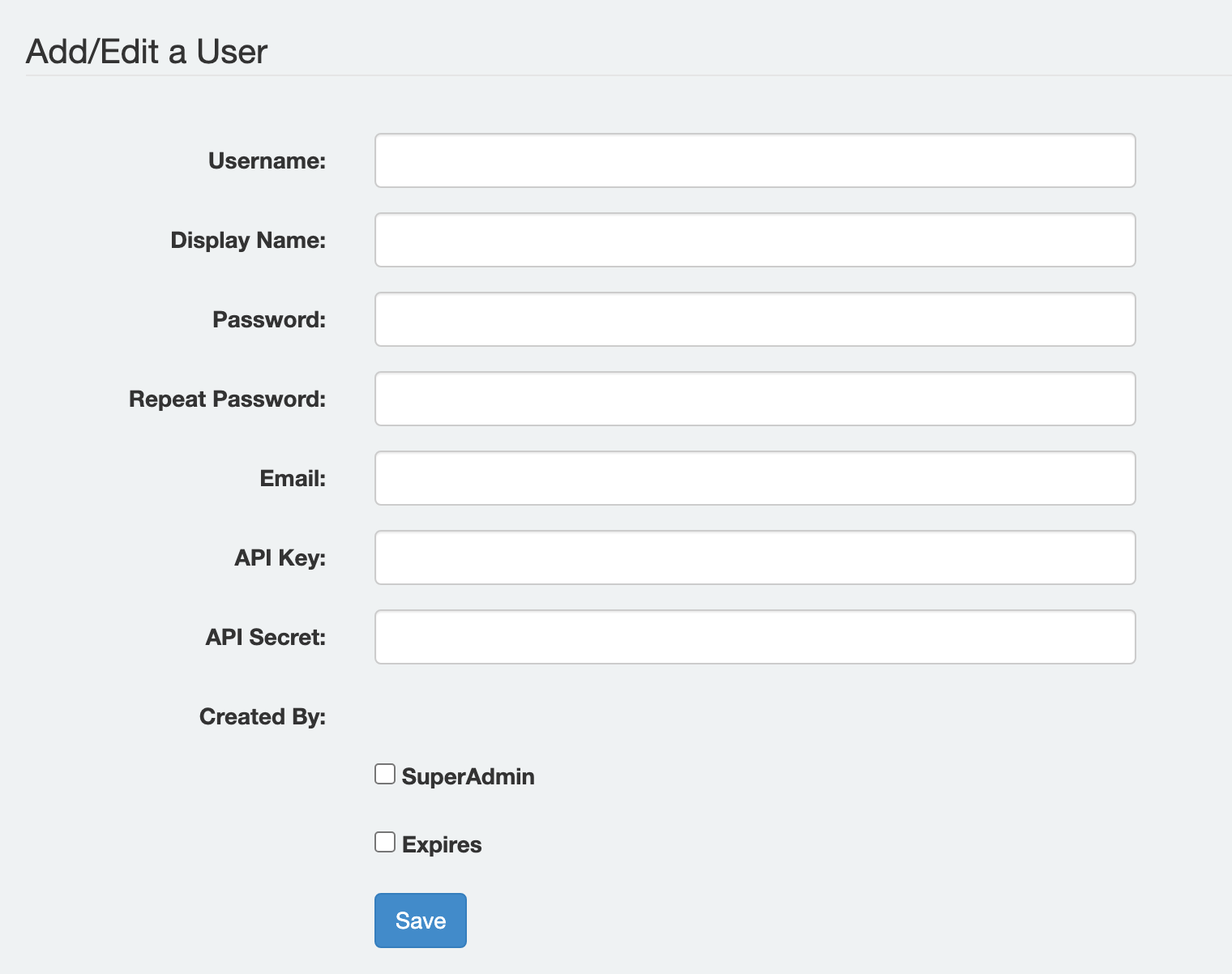
You can edit any local account you created.
- SuperAdmin gives the account full control of every instance on this Elevator server, including creating new instances.
- Expires sets an expiration date for the account.